


Your iPhone battery can easily get you through a normal day with regular access to a charger. However, long days away from home can make battery life a bigger concern. Apple offers several settings that can help reduce battery drain. A few small changes can also keep your iPhone running longer when you need it most.
Here are 10 practical ways to improve your iPhone’s battery life without changing how you use it too much.


Turn On Adaptive Power
Adaptive Power is one of the easiest ways to reduce battery drain on supported iPhones. The feature arrived with iOS 26 and uses on-device intelligence to understand your usage patterns. It can slightly lower display brightness, adjust performance, and reduce background activity. Moreover, Adaptive Power can enable Low Power Mode when your battery reaches 20 percent.
This feature is enabled by default on the iPhone 17 series and iPhone Air, while older models require manual activation. You can find it under Settings > Battery > Power Mode.
Automate Low Power Mode

Low Power Mode remains one of the most effective ways to extend battery life. Instead of waiting until your battery reaches 20 percent, you can automate its activation at a preferred threshold using the Shortcuts app. In iOS 26, simply search for “Battery Level” and set your desired percentage. You can then add Low Power Mode as the action. With iOS 27, Apple simplifies this process even further.
Disable the Always-On Display
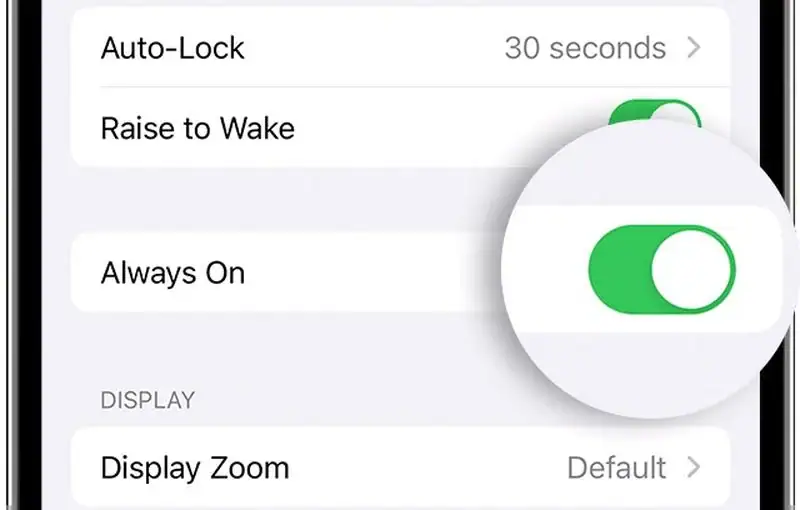
The Always-On Display keeps the time, wallpaper, widgets, and Live Activities visible on the Lock Screen. While designed to minimize power use, this feature can still consume more battery than simply turning the display off. Your device can automatically turn off the display if it detects that your connected Apple Watch is out of range.
You can disable the Always-On Display through Settings > Display & Brightness > Always-On Display. Alternatively, you can deactivate the wallpaper or notifications while keeping the feature active.
Limit the Display’s Frame Rate

Some iPhone models support Apple’s 120Hz ProMotion refresh rate, which enhances scrolling and animations. However, this feature can lead to increased power consumption. Limiting your display to a 60Hz refresh rate can provide additional battery savings.
To do this, simply go to Settings > Accessibility > Motion, then enable Limit Frame Rate. ProMotion capabilities extend to all iPhone 17 models, iPhone Air, and earlier Pro models dating back to the iPhone 13 Pro.
Use Dark Mode

Dark Mode reduces power consumption on iPhones equipped with OLED displays since these screens use less power when showcasing darker pixels. This difference becomes more pronounced when using your iPhone outdoors, where sunlight may require higher brightness.
Lower brightness levels yield smaller savings, but Dark Mode is still beneficial for minimizing power use while enhancing display comfort.
Review Which Apps Can Access Your Location

Location services can quietly contribute to battery drain. Reviewing which apps can access your location can help reduce unnecessary background activity. To assess this, navigate to Settings > Privacy & Security > Location Services. Here, you can evaluate location permissions for individual apps.
Apple offers four main options for location access: Never, Ask Next Time Or When I Share, While Using the App, and Always. Opt for Never where an app lacks a legitimate need for your location. For instance, mapping apps benefit from location access, but many others do not.
Reduce Background App Refresh

Background App Refresh allows apps to update content even when not actively used, which can gradually drain battery life. You can disable this feature entirely or restrict it to select apps. Access this option via Settings > General > Background App Refresh.
Choosing to enable background refresh solely over Wi-Fi can also minimize battery usage compared to allowing updates over cellular networks.
Reduce Notifications and Live Activities

Notifications can wake your iPhone’s display frequently throughout the day, while Live Activities keep information updated on your Lock Screen. Reducing unnecessary alerts could thus extend battery life. To manage notifications, navigate to Settings > Notifications and disable alerts from less essential apps.
Implementing Focus modes lets you control notifications by selecting which people and apps can interrupt you during specific times. You can also utilize Scheduled Summary to group nonurgent notifications and have them arrive at designated times instead of immediately.
Turn Off Keyboard Haptics

Keyboard haptics provide feedback through vibrations when you press an on-screen key. Although this feature enhances responsiveness, it can also lead to additional battery usage. To minimize unnecessary power drain, consider turning it off. You can do this by heading to Settings > Sounds & Haptics > Keyboard Feedback and disabling Haptic feedback.
Check Which Apps Are Using the Most Battery

Apple made monitoring battery usage easier in iOS 26 with a clearer interface. This section now indicates your current battery level, the last charging time, and if your phone is charging, provides an estimate until full charge.
It compares your current usage against typical daily use, alerting you if your consumption is higher, and reveals which apps are consuming the most battery. Apps identified with unusually high usage appear in orange. Regularly checking this section could help identify key contributors to battery drain.
Small Changes Can Make a Difference
Improving battery life doesn’t require disabling every iPhone feature. Instead, focus on settings that yield the most significant effects on your daily usage.
Prioritize features like Adaptive Power, Low Power Mode, background activity control, and location access settings. Moreover, checking battery usage can guide you in pinpointing which apps warrant attention. These adjustments may not double your battery life, but they can enhance your iPhone’s longevity, making a critical difference when you’re away from a charger.
For additional tips and deeper insights, check out the original article Here.
Image Credit: www.techjuice.pk


