


Optimizing Your Apple Watch Experience: Essential Settings in 2026
Setting up a new Apple Watch in 2026 is deceptively quick – pair it, sign in, and you’re basically ready to go. However, the default settings often cater to a generic user, resulting in an influx of notifications and a display that doesn’t stay active long enough for meaningful interaction. To enhance my experience, I make a handful of adjustments right away, aiming to personalize my Watch and avoid unnecessary frustration.
While you may not want to implement every change, collectively, these tweaks foster a calmer, clearer, and more practical smartwatch experience from day one—without delving too deep into niche health features or navigating cumbersome menu options. Here are seven ways to elevate your Apple Watch experience.


(Image credit: Future/Jacob Krol)
Today’s best Apple Watch Ultra 3, Apple Watch 11 and Apple Watch SE 3 deals.
Setting 1: Notifications

Perhaps this isn’t the time for an UberEats notification.
(Image credit: Torben Lonne/Divein)
The very first adjustment I make is to my notifications. If the Apple Watch reflects every alert from my iPhone, it quickly becomes overwhelming. In the iPhone Watch app, navigate to Notifications and go through the apps one by one. Anything that doesn’t demand immediate attention gets switched off, while critical alerts are customized for better utility at a glance. My usual picks include Messages, WhatsApp, Calls, and sports notifications from FotMob, while I become more selective with the rest.
This initial setup allows for a more focused and manageable Watch experience.
Setting 2: Wake Duration
Next up, I modify how long the display stays on after awakening. The default duration can feel insufficient when you’re trying to read something. To adjust this, go to Settings → Display & Brightness → Wake Duration, and choose Wake for 70 Seconds. This provides ample time to read notifications or track timers without the screen going dark prematurely.
If you find yourself re-raising your wrist just to keep the Watch awake, this setting significantly enhances the usability of your device.
Setting 3: Return to Clock
(Image credit: Future / Lance Ulanoff)
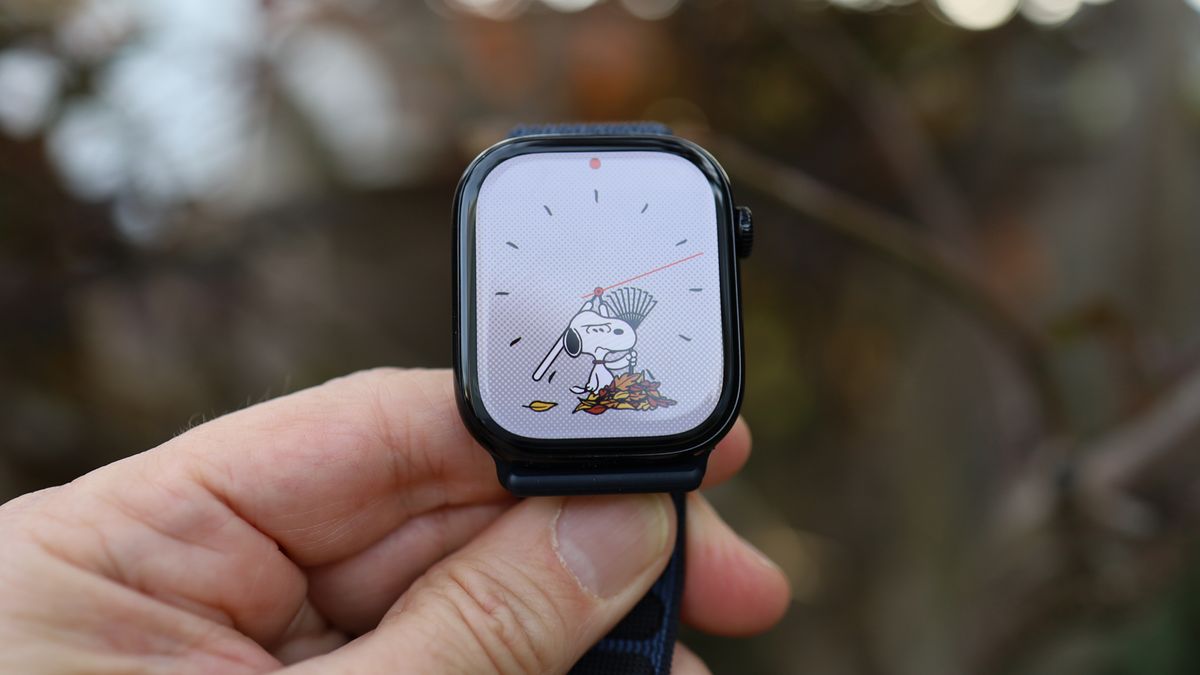
Following notifications, I make sure the Watch reliably returns to the watch face instead of lingering on the last app used. This might seem trivial, but it often happens at the most inconvenient moments, like when you have wet hands. To change this, look for the Return to Clock setting under Settings → General → Return to Clock. A quicker return time maintains the feel of a watch rather than a compact phone, though exceptions can be made during workouts.
Setting 4: Live Activities
(Image credit: Future / Lance Ulanoff)
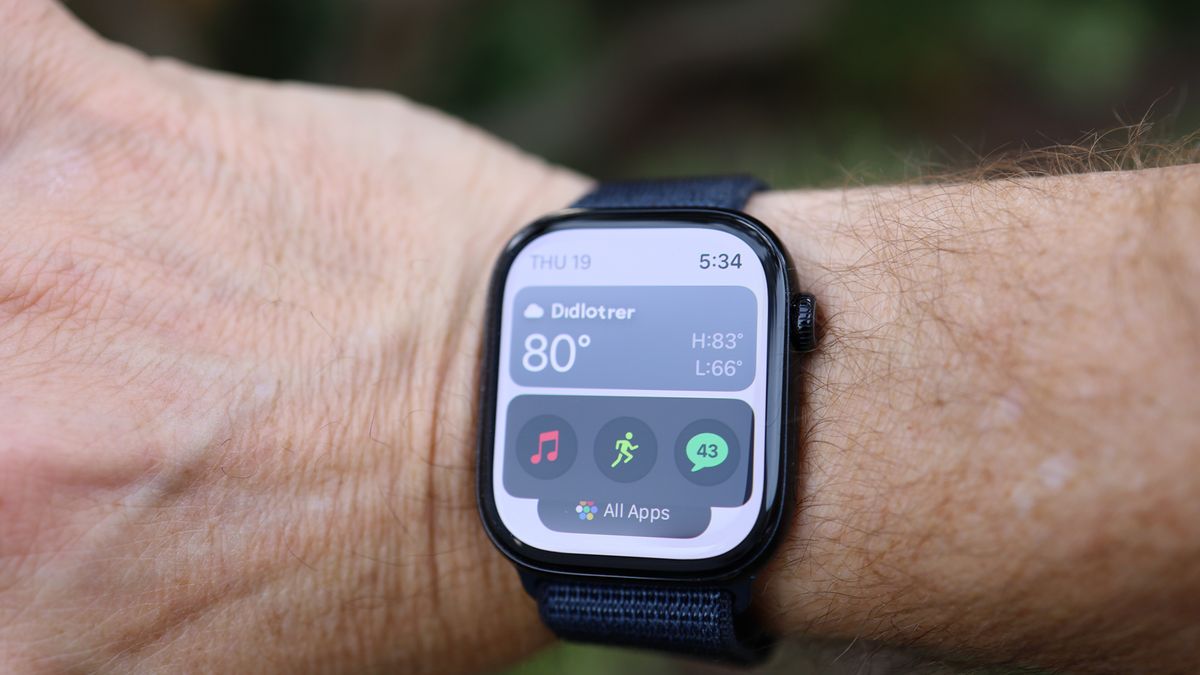
Live Activities can add value to your Apple Watch experience, but they can also take over your screen, impeding its glanceability. Access this setting through Settings → Smart Stack → Live Activities, where you can adjust their display and persistence. By default, Live Activities can occupy a prominent position; I prefer to tone this down to keep them accessible only when I want to check them.
Setting 5: Fall Detection
(Image credit: Future)
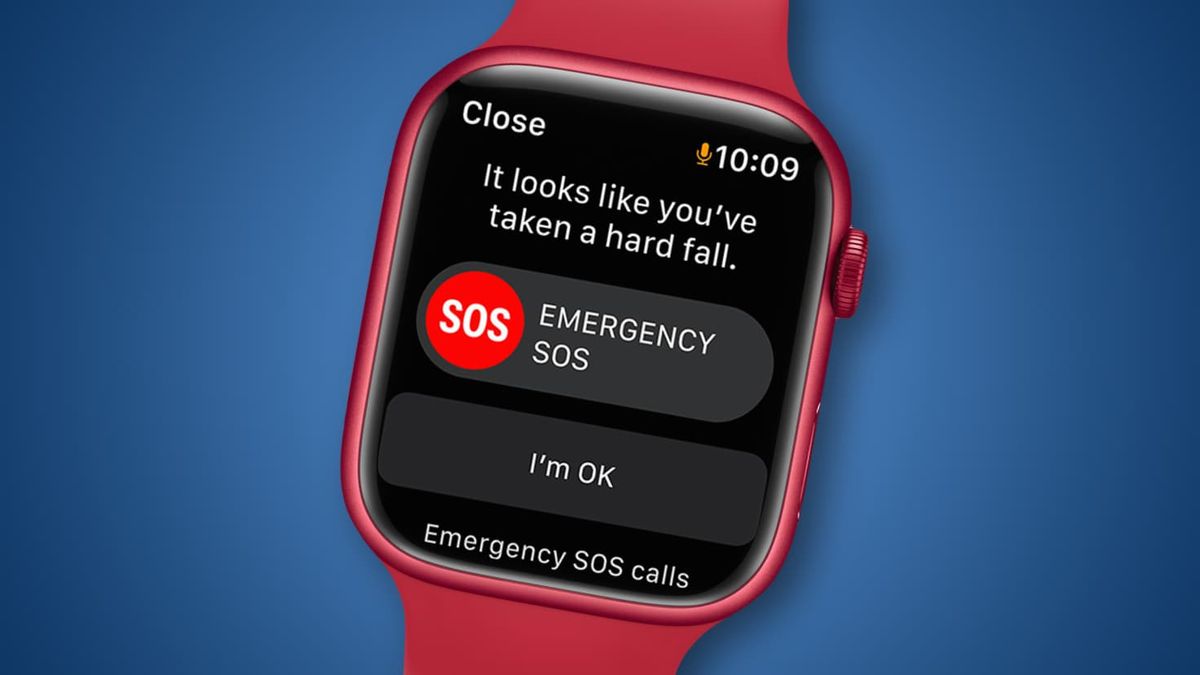
While I hope to never rely on this feature, I configure my Fall Detection settings right away. Navigate to Settings → SOS → Fall Detection (or through the iPhone Watch app under Emergency SOS) to ensure it’s set up to your preference. You can select between Always On and a mode that activates solely during workouts, making it worth considering when you would benefit most from it.
A critical point to note is that Wrist Detection influences what the Watch can do after detecting a hard fall. If it’s off, the Watch won’t automatically call emergency services, so enable it for full functionality.
Setting 6: Workout-specific Tweaks
(Image credit: Kanut Photo / Shutterstock)
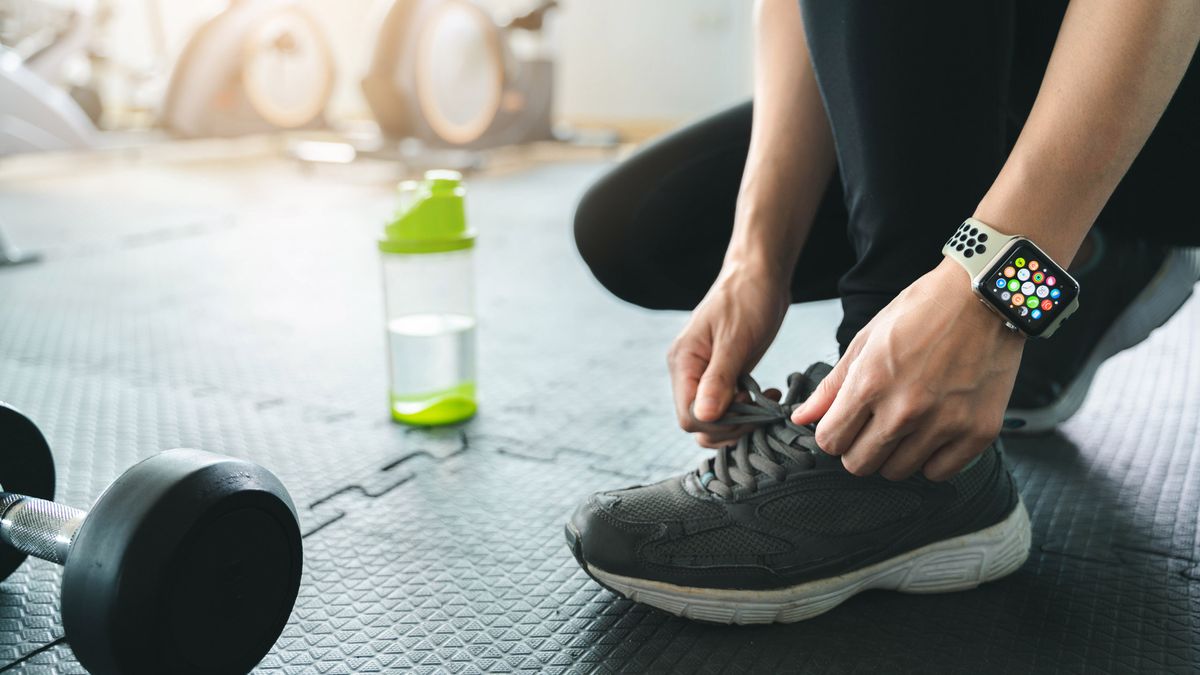
If fitness tracking is part of how you use your Apple Watch, take a moment to check the Workout settings before logging your first session. One major setting is Auto-Pause, which can be beneficial in theory but frustrating in practice if it disrupts your workout. For example, it may pause your activity when waiting at a crossing during a run but could interfere with interval or circuit workouts where stop–start movement is intentional. In such cases, disabling Auto-Pause is advisable.
Setting 7: Sound and Haptics
(Image credit: Future / Audible)
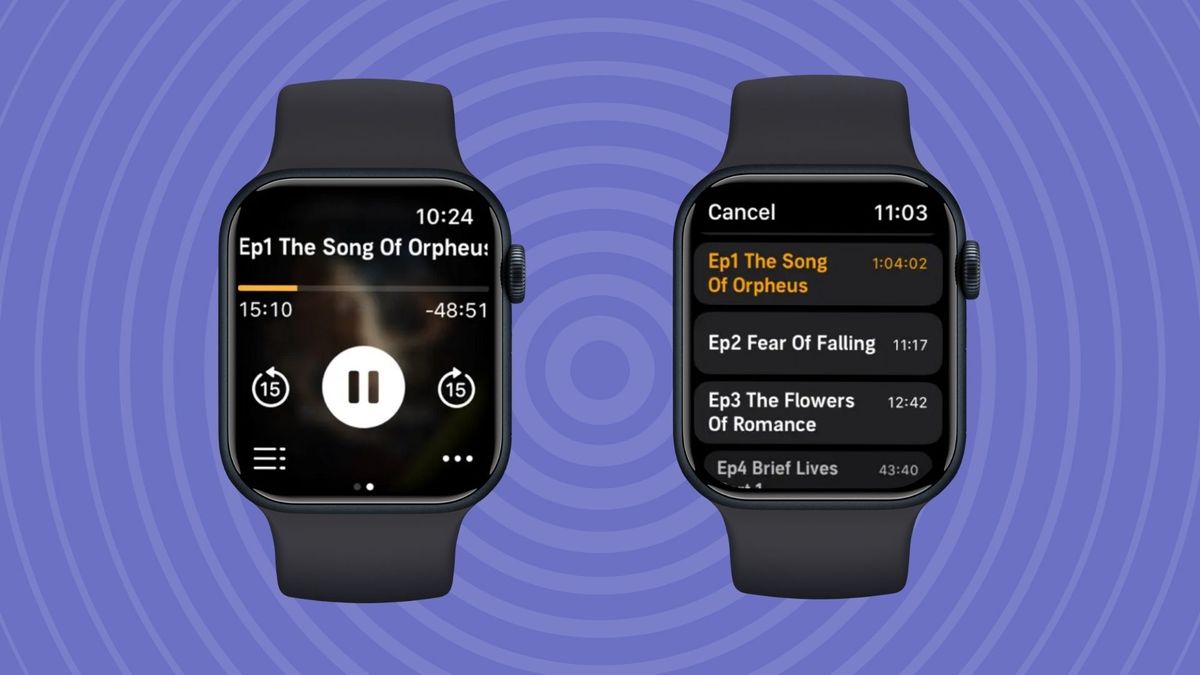
The final adjustment involves how the Watch communicates alerts. The default notification tone can feel excessive in social settings. To modify this, go to Settings → Sounds & Haptics. Consider the balance between audible notifications and haptic feedback. I typically reduce sound levels in favor of enhancing haptics, maintaining a discreet notification system while still keeping audible alerts for essential reminders, like alarms.
Making these adjustments significantly improves the experience of your Apple Watch, particularly when navigating public spaces.
Follow TechRadar on Google News and add us as a preferred source to get our expert news, reviews, and opinion in your feeds. Make sure to click the Follow button!
For more detailed insights, feel free to check out the original article Here.
Image Credit: www.techradar.com


